You’re halfway through developing a new feature when the boss suddenly walks in with an urgent bug to fix. What do you do?
Most people would probably use git stash to shove the half-written code into a drawer, then switch branches to fix the bug.
But what if your changes involve massive environment configurations, or if switching branches causes node_modules and Build Artifacts to cross-contaminate? That’s enough to make you want to smash your keyboard.
This is where Git Worktree comes to the rescue!
What is Git Worktree?
You can think of Git’s operation like “renovating a house.”
With the traditional git branch, when you switch branches, all the furniture in the room instantly vanishes before your eyes, and automatically rearranges itself to suit another task.
While it saves space, the downside is “environment contamination”. You have to stick your dirty dishes in the cabinet before you can even switch; and after switching, the smell of grease from the previous construction might still linger in the air.
On the other hand, Git Worktree is like directly constructing an identical house on the empty lot next door.
Simply put, the underlying principle of Git is:
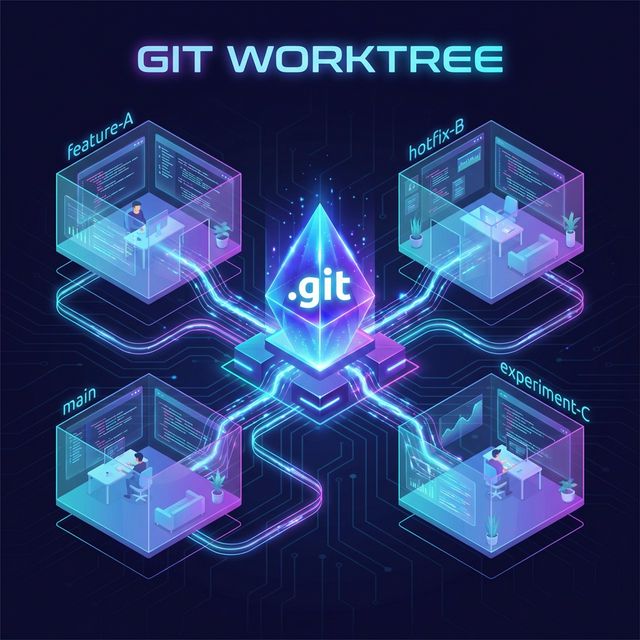
“One soul (.git database), multiple bodies (working directories).”
You can simultaneously own a “feature development branch store” and an “emergency repair branch store.” Your left hand writes AI logic in Window A, while your right hand fixes bugs in Window B, with neither side interfering. That is true parallel development.
Practical Guide to Worktree
To maintain your state of flow during development, directory structure and environment configuration are key.
1. Parallel Directory Management: Don’t Build Branch Stores Inside the Headquarters
Many people using Worktree for the first time clumsily create the new directory inside the original project folder. Never do this! It will throw Git into an infinite recursive mess. The correct way to build a Git Worktree is:
Place the headquarters (main) and the task branch store (feature) parallel to each other.
# Execute Worktree creation from headquarters, but place the Worktree directory outside the original project directory
git worktree add ../my-app-feat-ai dev-branch
Your directory structure should look something like this:
- my-project/       # Massive wrapper
  - main-repo/      # Stable headquarters
  - feat-ai-search/ # New branch store under construction
2. Environment Configuration Isolation: Give Each Branch Store Its Own Soul
Since the project directories are separate, your .env configuration files can be separate too.
You can connect to a testing database in feat-ai-search, while keeping the original development database in main. This way, when you switch windows, you don’t even have to change connection details.
After entering the Worktree directory, you use the environment variables of that specific Worktree directory directly for development, without having to do any environment switching or rebuilding. That feeling of “stepping right in and getting to work” is truly amazing.
Worktree Merge Workflow
After finishing development inside a Worktree, the workflow is actually identical to a traditional branch, with just one extra “demolition” action.
| Workflow Steps | Description |
|---|---|
| 1. Commit & Push at the Branch Store | You must physically go to the branch store to sign off. |
| 2. Headquarters Inspection (Merge) | You can either go back to main to merge, or open a Pull Request (PR) directly. |
| 3. Elegant Demolition (Remove) | Once the task is completed, don’t delete the folder directly; use a Git command to tear it down: git worktree remove ../feat-ai-search |
Boom! The temporary Worktree hut is torn down, disk space is reclaimed, and your headquarters is still squeaky clean.
Worktree Pitfall Avoidance Guide
Although Worktree is highly useful, there are still a few pitfalls to watch out for:
| Item | Description |
|---|---|
| Don’t indiscriminately move headquarters | Because Worktree records absolute paths. If you rename the headquarters directory, the Worktree branch store will perish because it can’t locate its “soul.” |
| No dual-branching | The same branch cannot be checked out simultaneously in two Worktrees. |
Roomba prune |
If you do clumsily delete the folder using rm -rf, remember to run git worktree prune to clear away any remaining records in .git. |
Conclusion: Should I Stop Using Git Branch?
Different scenarios call for different development methods. It’s not about one replacing the other, but rather which is more suitable.
| Scenario | Description |
|---|---|
| Everyday minor tweaks | Keep using branch; it’s light and fast. |
| Large-scale tasks | For example, massive refactoring, adjustments spanning multiple environment variables, or tasks requiring long-term collaboration with AI, spinning up a Worktree is absolutely the top choice. |
Git Worktree is more than just a command; it’s a powerful tool helping us maintain our development flow. Next time you’re faced with a cumbersome, expansive task, try opening an isolated “Git Worktree branch store” and experience a smooth development process like never before!